Guide index
User manual
Booking page
The public journey your client follows.
Updated November 2026
The booking page is your public link /book/<slug>. Clients choose a service, date, and time and leave their details without creating an account. You decide what they see through services, availability, and booking rules.
- The client picks an active service.
- Selects a day and time among the available slots.
- Enters the data the form requires.
- Confirms the request or the booking, depending on your rules.
- After confirmation, the client receives an email branded with your page colors and can add the appointment to Google Calendar or download the .ics file.
- If no slot fits, the client can leave a waitlist request from the page.
- When you propose a date or service change, the client can confirm, cancel, or counter-propose from the link they receive.
- From the messages they receive, clients can verify their contact details and manage the booking through the dedicated link.
- On the management page, for a confirmed appointment that has not ended yet, the client finds Aggiungi al calendario: Google Calendar opens a prefilled event; Apple / Outlook downloads the .ics file with the time and the studio address, when available.
What shapes what the client sees
- Active services
- Drive the first screen. With none active, the client cannot start the flow.
- Availability + duration
- Drive the times on display. Changing a service's duration can completely change the slot list.
- Contact fields
- Drive which data the client must leave to proceed.
- Confirmation and protection
- Drive whether the request lands as confirmed, as pending, or as a booking to confirm via link.
Choose a service and resources
The first screen lists active services with your public profile details.
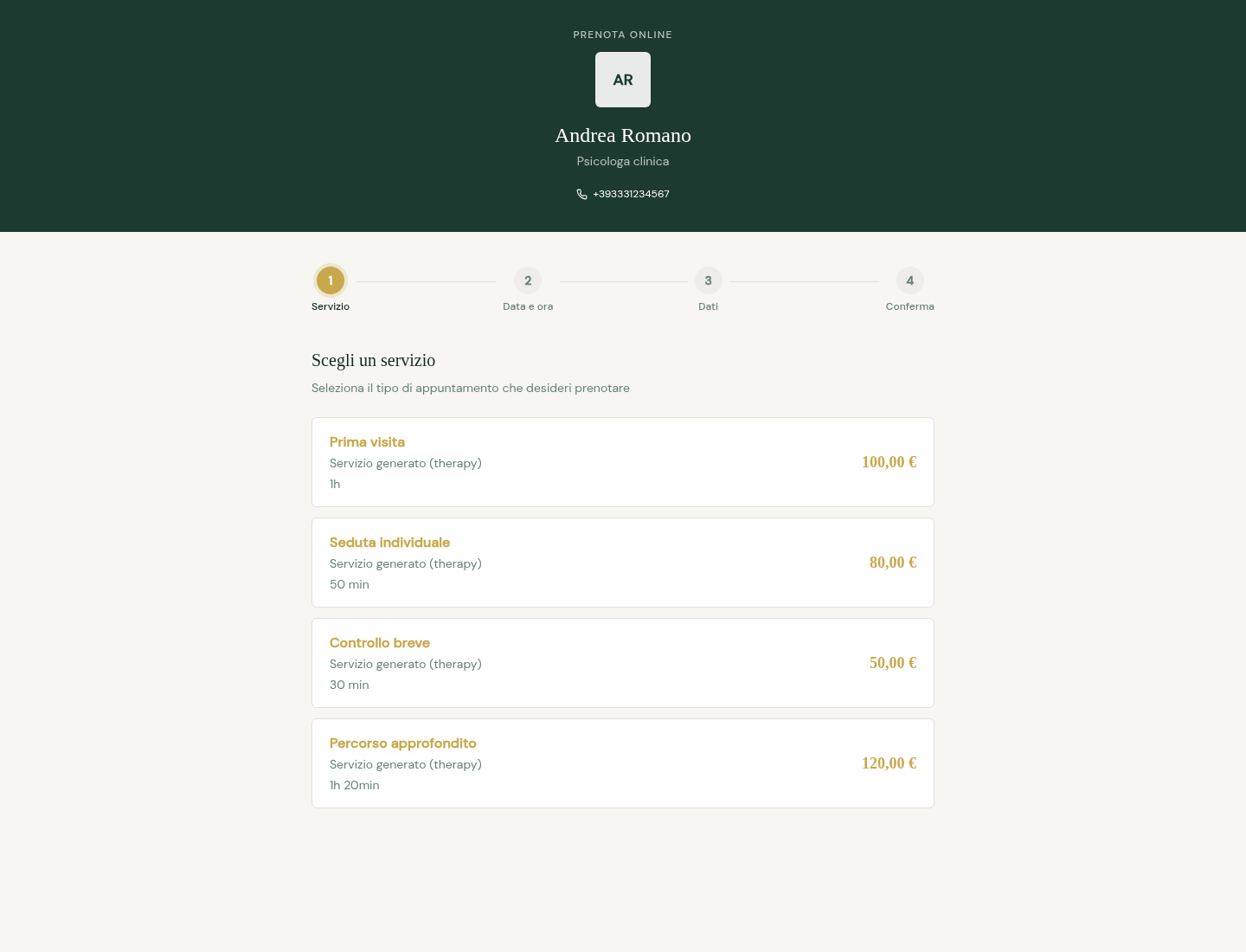
- Open /book/slug from the professional's link and choose a service. Name, description, duration, and price distinguish it; only active services appear.
- If the service allows a resource choice, select the alternative before the times. For automatic requirements Agenda Core chooses the free resource.
- Website, phone, and address in the header are public links: phone opens a call and address opens Maps. Booking requires no client account.
Date, time, and timezone
After the service, clients see the month calendar and the free times for the chosen day.
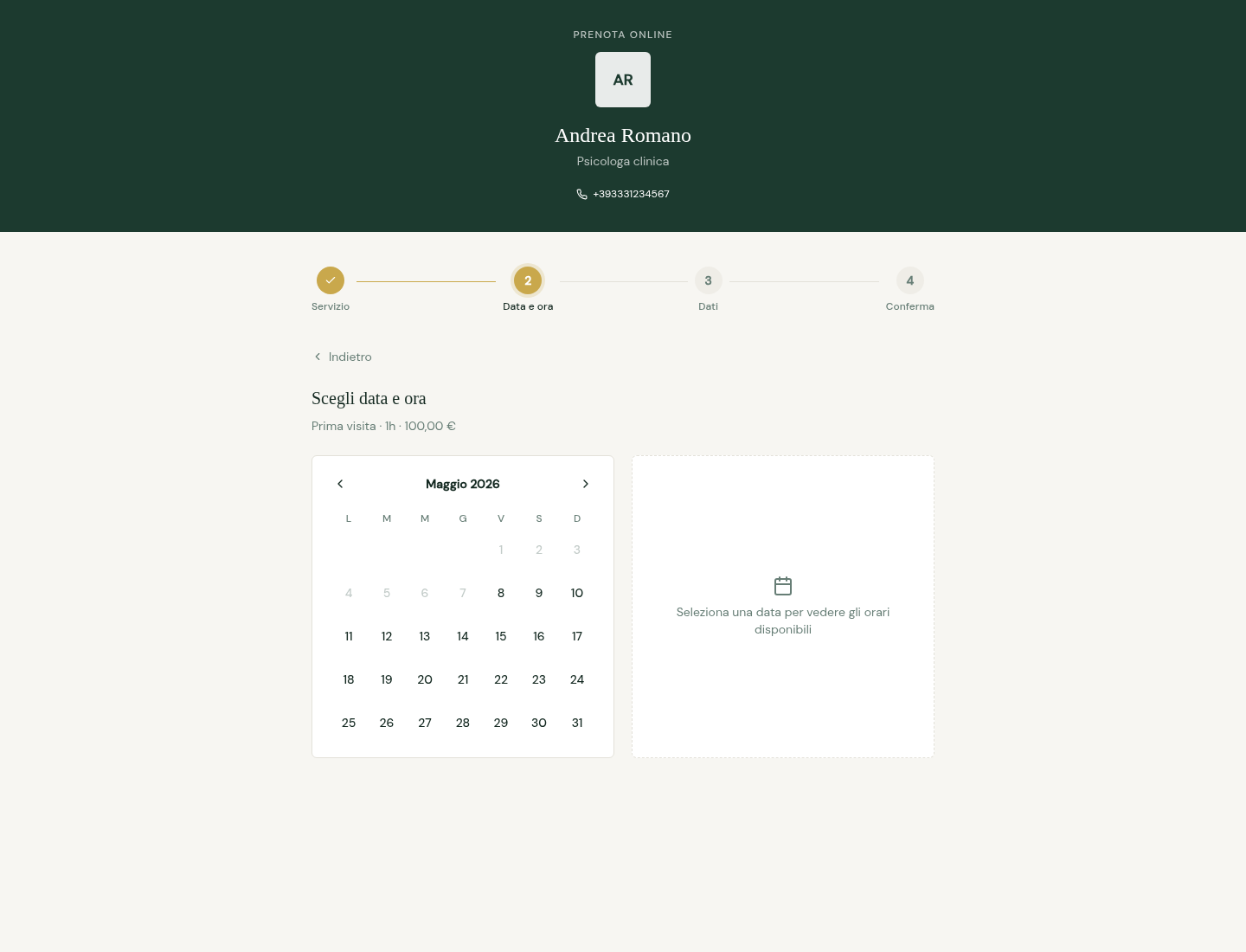
- Use the calendar and month arrows, choose a date and one of the times. Back allows changing service.
- Read the timezone notice when your device is not in Europe/Rome. Availability depends on duration, buffer, closures, blocks, appointments, and all required resources.
- If no slot fits try another day or the waitlist. If a selected time becomes occupied before submission, return to slots and choose another.
Client details and privacy
- Enter full name, required contacts, and optional notes. Email and phone can be hidden, optional, or required according to the professional's rules.
- Check service, date, and time, read contact-verification text and the privacy notice, then select the required checkbox and Confirm booking.
- The browser may suggest name and contacts saved for 30 days after submission; notes and privacy acceptance are not reused. Blocking local storage does not prevent booking.
- The button is disabled during submission. An error appears in the form: correct fields or change slots without treating the request as complete.
Confirmation, pending status, and contact verification
- After submitting, read the outcome message. The table below explains what it means and what to do.
- If verification is needed, the slot stays reserved for a short time: open the email or SMS link right away.
- With manual confirmation on, a verified contact is still a request that needs approval.
- After submission without pending verification add the summary to Google Calendar or download Apple Calendar (.ics). A pending-request summary does not replace approval.
| Message | Meaning | What to do |
|---|---|---|
| Appointment confirmed | The booking is accepted | Save it to your calendar |
| Request sent | The professional still needs to approve it | Wait for the reply |
| Request almost complete | You need to verify your contact | Open the link sent by email or SMS |
| Contact verified | Verification succeeded | With manual confirmation, wait for approval |
| Link expired | The verification link is no longer valid | Book a free slot again |
| Invalid link | The link is wrong or no longer usable | Ask the professional for help |
Manage an appointment from its link
- Open the received link to check service and date. For a professional change proposal choose confirmation, cancellation, or another available slot.
- For another slot choose date and time and send the proposal: professional approval is required. No available slots needs another date; cancellation can be rejected beyond the hours limit.
- Wait for Reply recorded. Invalid link may mean an unavailable proposal or cancelled appointment; for a package session this page asks you to contact the professional.
Join the waitlist
- When a day has no slots enter name, email, and phone in the Waitlist form. Add notes or preferences if needed.
- Submit and wait for You're on the waitlist: the service and requested date are linked to the request. Joining is neither an appointment nor a guaranteed slot.
- If confirmation does not appear check data and connection or contact the studio. This form does not display a specific send-failure message.
View a package and propose a date
- Open the package link sent by the professional. Read progress, completed, booked, and unscheduled sessions and the displayed timezone.
- Choose a confirmed future session, enter desired date and time and an optional message up to 500 characters, then Send proposal.
- The proposal neither moves the session nor reserves the slot. Only one proposal can be pending per package; Withdraw proposal removes it before the professional decides.
- If the link is no longer valid request a new one: each resend invalidates its predecessor. No dated sessions means the professional still needs to schedule; for proposal errors check the date and retry.
Unavailable page and testing the flow
- If the profile fails to load check the complete link and contact the professional. Without active services you cannot start; a changed slug needs the new address.
- Before sharing, the professional can inspect services and times on the public page. The regular form submits a real request: stop before confirmation if you only want to inspect its appearance.
- The public page is available in Free and Core and displays enabled resources and settings only. For persistent problems the studio can send Support the affected step.