Guide index
User manual
Dashboard
The quick view that tells you what needs attention today.
Updated November 2026
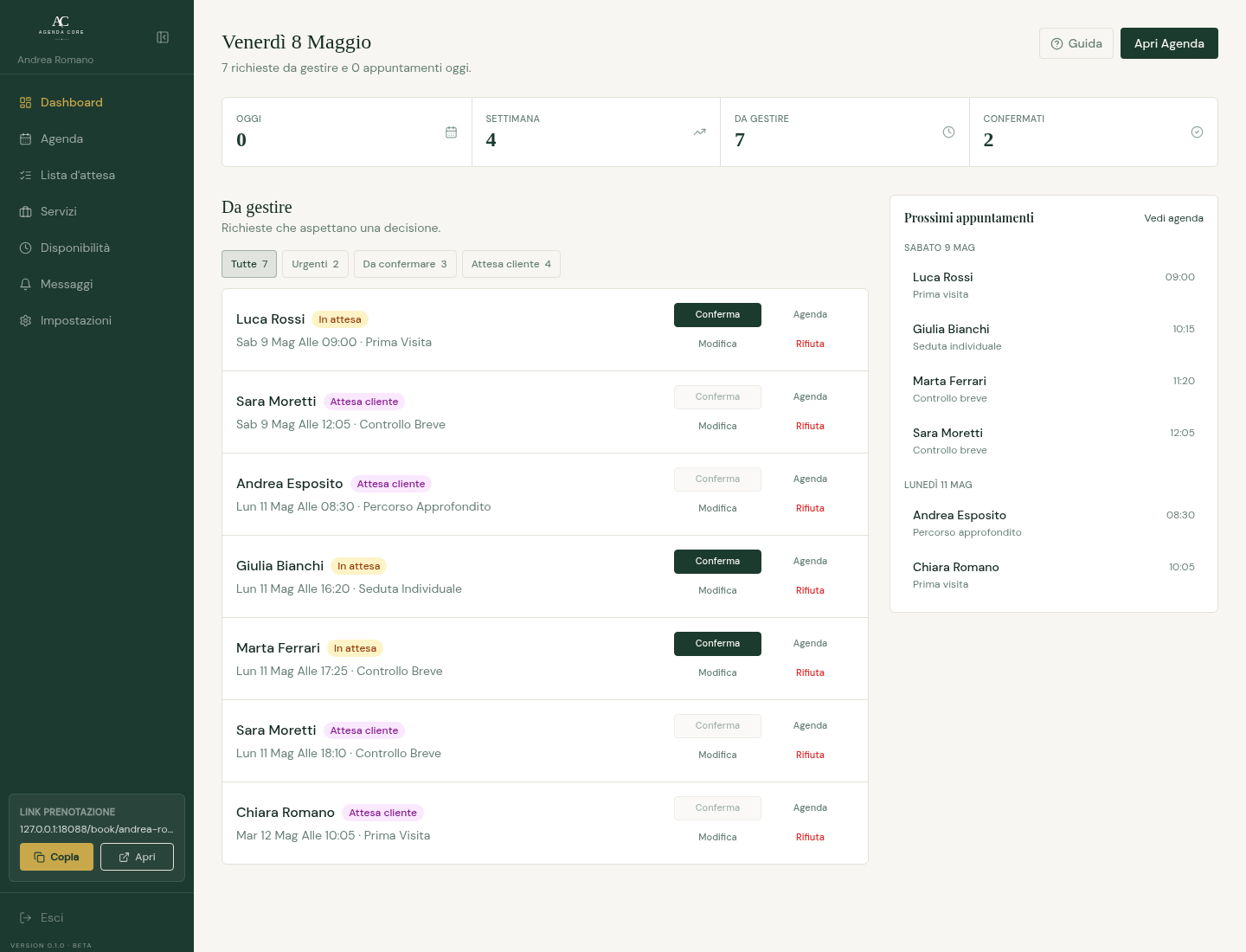
The Dashboard helps you decide what to do next. The top cards summarize today, this week, requests to handle, and confirmed appointments. The To handle block lists bookings that need a decision from you or from the client.
What changes when you edit your settings
- Manual confirmation
- When active, new requests can arrive as Pending and appear in To handle with Confirm, Edit, and Decline actions.
- Client proposal
- When you propose a new time, the request moves to Awaiting client: the Confirm button stays disabled until the client replies from the public link.
- Plan and limits
- Free includes unlimited appointments and services, statistics, waitlist, and manual blocks. Google Calendar, additional agendas, and accessory resources require Core; check Subscription for your plan and allowances.
Summary and upcoming appointments
- Check Today, Week, Confirmed, and To manage; open Calendar to see the period or a request to manage it.
- Upcoming appointments covers the next 14 days. Open a row for detail; mobile retains compact summaries.
- An empty list can mean no appointments in the period rather than an error. Free and Core include the summary.
- On mobile First free slot searches the next seven days using the base duration: Open calendar shows the day, Fill gap opens the waitlist for that date. In the waitlist summary call a contact with a phone number or open Calendar on the preferred date; for flexible dates open the list.
Make your profile bookable
- If the profile is incomplete, follow the links to create an active service and at least one day with valid hours.
- Open the activation card to check missing items, then run the public-link quick check. Items needing attention open the corresponding page.
- Hide the panel for the session if needed; this does not complete setup. The card disappears when all checks pass; the initial view changes after the first real appointments.
Requests, filters, and bulk archive
- Choose the requests to manage, urgent, or expired filter. Open a request to confirm, edit, or reject it.
- For Awaiting client wait for the public-link reply. Expired requests remain separate and do not increase To manage or Urgent counts.
- For expired requests select visible rows or all in the filter, up to 50. Check the count in the archive dialog and confirm; clients receive no messages.
- Read the archived, already handled, and partial-error summary. Retry unchanged requests; for one request use Archive as not performed with the same confirmation.