Guide index
User manual
Services
Price list, duration, and availability of bookable treatments.
Updated November 2026
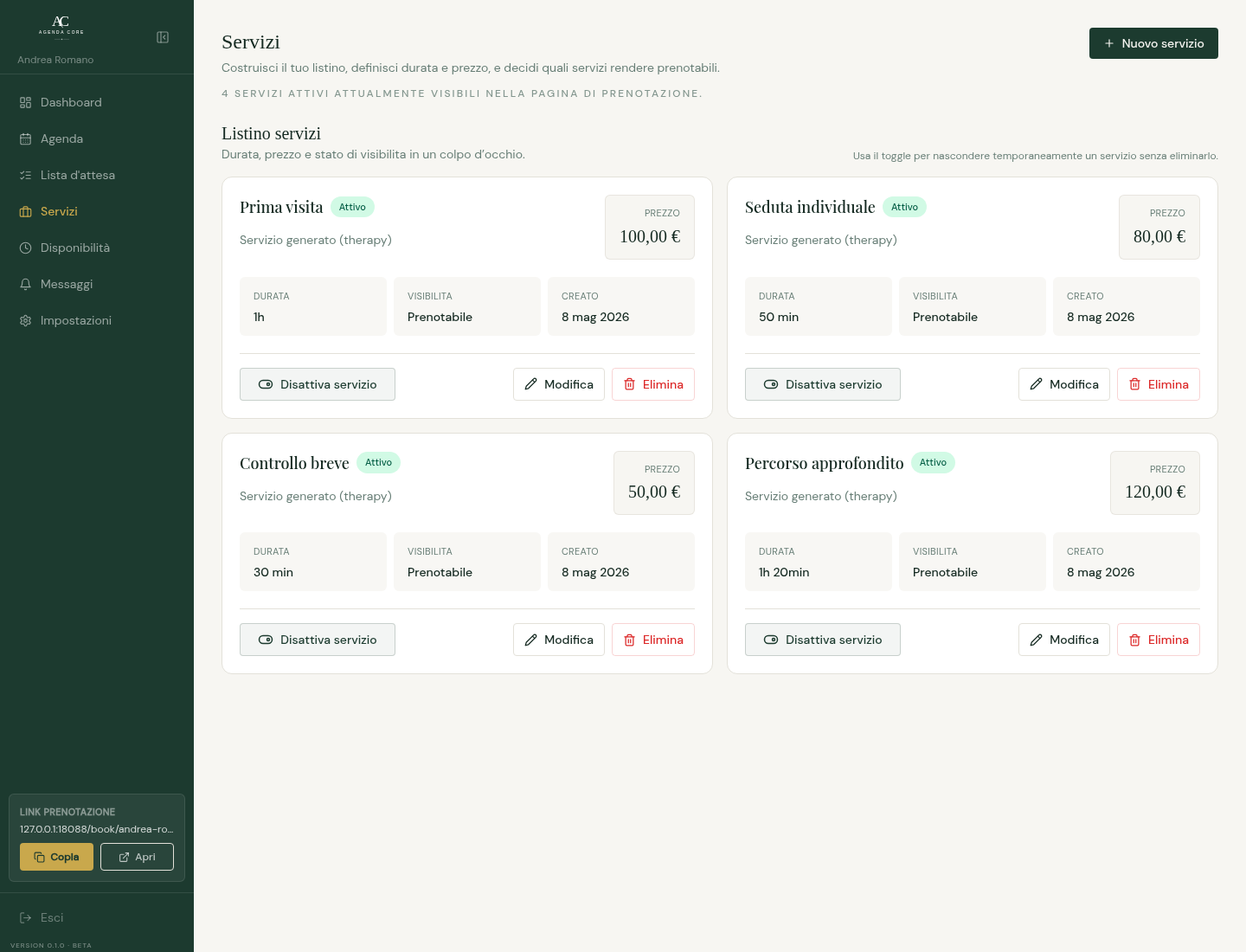
Each service is a booking rule. Name, description, duration, price, active status, and required resources determine what the client sees and which slots get calculated. A time appears only when every required resource is free for the full duration.
What changes when you edit a service
- Duration
- Stretches or shrinks the possible slots. An 80-minute service may not fit a time band where a 30-minute one fits with room to spare.
- Active status
- A deactivated service stays saved in the dashboard, but disappears from the public page and cannot receive new bookings.
- Removal
- Removal requires confirmation in a dialog. The service is deactivated and stays saved, but cannot receive new bookings.
- Price
- The price never blocks a booking. Clients see it before choosing.
- Name and description
- Public text: it helps the client pick the right service before choosing date and time.
- Resource to reserve
- While creating a service, you can attach its first active resource; Owner is preselected. After creating the service, open Edit to configure additional requirements and alternatives.
- Several required resources
- Under Resources required by the booking, every card is one mandatory requirement. A service that reserves a practitioner and a room needs two separate cards, created with Add required resource.
- Alternative resources
- Several resources selected in the same card are alternatives: the appointment reserves only one. Use Require all together to turn them into separate requirements when every resource must be free.
- Who chooses
- With Automatic assignment, Agenda Core uses the first free alternative in the configured order. With Client choice, the booking page asks for a preferred alternative before showing times.
Service catalogue
- Open Services → Services to read duration, price, status, and linked resources. New service opens the editor; Edit opens an existing service.
- Enable or disable a service to show or hide it in booking. Remove asks for confirmation and disables the service without deleting its history.
- Free and Core include unlimited services. Create the first service when the catalogue is empty; if loading or saving fails, check the error before retrying.
Create and edit a service
- Enter name, price in euros, and duration from the list. Add a description clients can understand.
- Leave Specific buffer empty to inherit the general value, use 0 to disable it, or enter the desired minutes.
- On creation choose the first resource, then save. For several requirements reopen Edit and complete Resources to occupy. Without active resources, reactivate one before saving.
- One save updates details and resources. Cancel closes the editor without confirming changes; errors remain visible in the editor.
Organise what each booking occupies
- On Core open Edit > Resources to occupy. Add an entry for each required resource.
- Resources in one entry are alternatives. Use Require all together to turn them into simultaneous requirements; a resource already in another entry cannot be selected again.
- For alternatives choose automatic assignment or client choice, then save. Free uses Owner; each service requires one agenda with optional Core accessories.
- If slots disappear, check that every requirement has an active resource free for the duration and buffer.